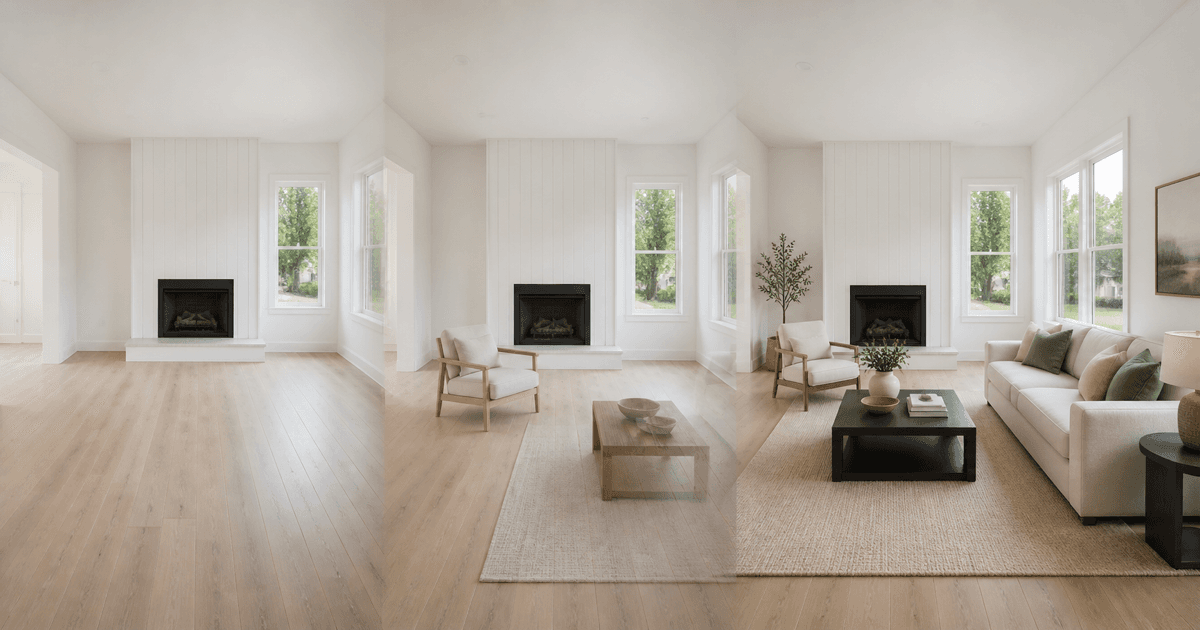
RoomLab is an AI visual tool that starts with a room or property photo and can produce a staged, emptied, decluttered, restyled, enhanced, or animated version. For real estate agents, the most distinctive workflow is not another furnished still. It is the option to turn listing photos into short video walkthroughs, before-and-after transitions, or a multi-room tour.
That does not make every output appropriate for a listing. An image can look polished while changing a window, softening a defect, stretching a room, or creating motion that suggests a camera captured something it never did. The practical question is whether RoomLab can support a controlled listing-media workflow without weakening accuracy or buyer trust.
My standard is the same for stills and video: if the visual makes the property harder to understand honestly, it is not ready to publish.
RoomLab Review: The Short Answer
RoomLab is worth a small test for agents who want one workspace for photo-based virtual staging and short AI property videos. Its public feature set covers vacant-room staging, furniture removal, decluttering, restyling, wall-color changes, photo enhancement, exterior images, and video generation. The free allowance makes a limited test possible before paying.
The strongest reason to evaluate it is workflow breadth. An agent can begin with a real room photo, create a reviewed staged version, and then use the original and staged images as the start and end frames of a transition. RoomLab also advertises single-photo camera movement and multi-room tours assembled from several ordered photos.
The main caution is also clear: generative video adds more review surface than a still image. You are no longer checking one frame. You must inspect what appears between the frames, whether the architecture stays fixed, and whether the final clip can be disclosed and distributed under the rules that apply to the listing.
What Is RoomLab?
RoomLab.app describes itself as an AI visualization platform for real estate professionals, architects, interior designers, and people planning rooms. It works from uploaded JPG, PNG, or WebP images rather than requiring an agent to build a 3D model for the core photo workflows.
Based on RoomLab's public pages, the current tool set includes:
- virtual staging for empty rooms;
- decluttering while retaining existing furniture;
- removing furniture to create an empty-room concept;
- changing room style;
- replacing furniture or materials;
- previewing wall colors;
- photo enhancement and some outdoor adjustments;
- rendering 3D models into photorealistic concepts;
- single-photo video movement;
- start-frame-to-end-frame video transitions; and
- multi-room house-tour videos.
This breadth is useful only if the agent separates the jobs. Virtual staging adds non-permanent furnishings. Decluttering removes items that exist. Material replacement and wall-color changes show a possible future condition. Photo enhancement changes presentation. Each creates a different buyer expectation and may require a different review or disclosure path.
The virtual staging versus photo enhancement guide explains those boundaries before you choose a tool mode.
RoomLab Features Verified on Its Public Site
| Question | Status | What that means |
|---|---|---|
| Does RoomLab publicly offer virtual staging and photo-based editing? | Verified on RoomLab's current public site | The feature categories and workflow descriptions are visible without an account |
| Does it offer video from property photos? | Verified on its video feature page | RoomLab describes walkthrough, transition, and multi-room modes |
| Can a transition use an empty room and staged room as endpoints? | Verified as a documented product workflow | The tool accepts a start and end frame and generates the motion between them |
| Is there a free test? | Verified on the current public pricing and video pages | RoomLab states one free image and one free 5-second video with no card required |
These verified details establish what RoomLab currently documents on its public site. Agents should still review each generated file before using it with a live listing.
RoomLab's Most Interesting Real Estate Workflow: Staging to Video
RoomLab documents three video modes. Each solves a different marketing job and creates a different review burden.
Single-photo walkthrough
The agent uploads one room or exterior image and chooses camera movement such as a pan, zoom, or orbit. The result is generated motion from a still, not footage captured by a camera moving through the property.
That distinction should remain clear. Generated motion can reveal areas that were never visible in the source, warp straight lines, change reflections, or imply depth the original photo does not establish. Review the whole clip frame by frame.
Before-and-after transition
The agent provides a start frame and an end frame. For virtual staging, those might be the original vacant room and an approved staged still. RoomLab generates the transition between them, such as furniture appearing or assembling.
This is the most differentiated practical use case. The original frame establishes current condition, and the final frame shows a furnishing concept. The generated middle can make the relationship easy to understand, but it can also introduce objects, movement, or property changes neither endpoint contains.
Multi-room house tour
RoomLab says agents can order three to six room photos and generate a 12-, 15-, or 30-second tour with a shot for each room and cuts between them. This may be useful for social or listing-marketing channels that accept generated video.
Use the broader AI real estate video generator workflow to compare a sequenced slideshow, source-frame pan and zoom, generative photo-to-video, actual walkthrough footage, and synthetic narration before choosing the production method.
It is not the same as a continuous physical walkthrough. Do not imply that the generated sequence proves room adjacency, traffic flow, ceiling height, or what a person would see while moving through the home.
A Practical RoomLab Workflow for a Real Estate Listing
Step 1: Define the visual job
Start with the buyer-understanding problem. Is the room vacant and hard to scale? Is an occupied room visually noisy? Does the agent need a short social clip from already approved stills? Do not open every tool mode and hope the most dramatic result becomes the strategy.
Step 2: Confirm rights, seller approval, and channel rules
Confirm that the brokerage has the necessary rights to upload, transform, publish, and distribute the source media. Discuss the intended edits and destinations with the seller. Check applicable MLS, brokerage, advertising, platform, privacy, and local requirements before production.
Step 3: Preserve the original
Keep the untouched source in a clearly labeled folder. Never let a generated output overwrite the original. If RoomLab or any other service later removes files from account history, your own archive should still show what the property looked like and what was changed.
Step 4: Create one restrained still
Begin with a single high-quality room photo. Choose the narrowest tool mode that fits the job. For a vacant room, add only realistically scaled furniture and restrained decor. Do not use material replacement, repainting, landscaping, or custom edits when the assignment is simply furniture visualization.
Step 5: Compare the still with the source
Check walls, windows, doors, fireplace details, flooring, trim, fixtures, outlets, vents, views, visible condition, perspective, and room proportions. Inspect furniture contact points, shadows, reflections, and traffic paths. Reject any output that changes the physical property or hides a limitation.
The complete AI virtual staging workflow for real estate agents provides a room brief, quality-control scorecard, file system, and publishing checklist.
Step 6: Decide whether video adds information
A transition can clarify that the furniture is virtual. A short pan can add movement to social content. A house-tour sequence can package several approved photos. If the clip is only decoration, it may not deserve the additional quality-control and disclosure work.
Step 7: Generate from approved endpoints
For a staging transition, use the untouched original as the start frame and the approved staged still as the end frame. Keep camera position and crop aligned. Avoid using a revised endpoint that already changes paint, flooring, fixtures, landscaping, or another permanent condition unless the visual is explicitly a reviewed future-condition concept.
Step 8: Inspect the entire clip
Watch at normal speed, slow speed, and frame by frame. Look for shifting windows, bending walls, changing floor patterns, moving fixtures, altered views, invented rooms, disappearing damage, floating objects, impossible furniture, and text or logos that were not in the source.
I would reject a smooth video with one misleading frame. Motion does not average away an accuracy problem.
Step 9: Add disclosure and context
Use the exact labels, captions, remarks, paired originals, watermarks, or other treatment required by the destination. Make clear that the furnishing and motion are AI-generated when that is required or necessary to prevent confusion. Keep the current property condition available in the format your rules require.
Step 10: Publish, inspect, and archive
Check the live post or listing on mobile and desktop. Confirm the disclosure remains visible, the clip has not been cropped into a misleading sequence, and the original is accessible where required. Record which file was used, where it appeared, who approved it, and when it should be removed or updated.
RoomLab Pricing as of September 7, 2026
RoomLab uses credits, and the number of images or videos shown below is the vendor's current estimate for each tier. Pricing and allowances can change, so verify the checkout page before buying.
| Tier | Current public price | Public allowance | Practical fit |
|---|---|---|---|
| Free test | $0 | One image and one 5-second video; RoomLab states no card is required | One controlled source-photo and transition test |
| Personal | $15 one time | 150 credits, shown as about 15 images or 3 videos | An occasional listing or small evaluation without a subscription |
| Pro | $20/month launch price | 400 credits, shown as about 40 images or 8 videos | Light recurring production |
| Ultra | $50/month launch price | 1,100 credits, shown as about 110 images or 22 videos | Higher-volume professional use |
| Premium | $100/month launch price | 3,000 credits, shown as about 300 images or 60 videos | Agency or power-user volume |
RoomLab's public FAQ says a standard image generation uses about 10 credits and 4K adds about 5 credits. It also says unused subscription credits roll over, the $15 option is a one-time purchase, and generation purchases are not refundable because generation costs are incurred.
Do not choose a plan from headline capacity alone. Your usable-output cost is:
total plan cost
------------------------------  =  cost per approved visual
approved, publishable outputs
If 20 generations produce five files you would actually approve, calculate against five. The reject rate matters more than the vendor's maximum image count.
Data Handling and File Retention Questions
RoomLab's public FAQ states that uploaded photos remain private and are used for generating designs. It also describes automatic deletion after one month for generated images and history on Pro and Ultra, and after three months on Premium. The visible FAQ does not describe the same retention schedule for every tier.
Those statements are a starting point, not a complete brokerage vendor review. Before uploading live listing media, check the current terms and privacy provisions and ask:
- Who owns the uploaded image and generated output?
- May the vendor use inputs or outputs to train models?
- Where is data stored and which subprocessors receive it?
- Can the brokerage delete inputs, outputs, account data, and backups?
- What happens when a subscription ends?
- What rights are granted for commercial listing and advertising use?
- Is a data-processing agreement available if the brokerage requires one?
- What incident-notification and security commitments apply?
Download approved files promptly and maintain the brokerage's own source and publication archive. A vendor gallery is not your records system.
Virtual Staging and Video Disclosure Still Matter
There is no single universal disclosure treatment for every MLS and every marketing channel. Rules can differ significantly.
For example, CVR MLS requires disclosure in remarks when a photo is altered, manipulated, or enhanced by virtual staging. ARMLS describes a digitally altered watermark and paired-original requirement. Canopy MLS publishes its own rules for altered media, disclosure, and rights to listing content.
These examples do not establish the rules for your listing. They show why “virtually staged” cannot be treated as one universal footer. Ask the MLS and broker what applies to still images, generated videos, social posts, portals, ads, and any future-condition visual.
The AI virtual staging disclosure guide gives agents a broader pre-publication checklist.
What Agents Should Test Before Paying
Use the free allowance on a representative image, not the easiest demo photo you can find.
- Choose one accurate, well-lit photo from a past listing or an approved non-sensitive test.
- Record every permanent feature and visible condition detail that must remain fixed.
- Create one restrained staged still.
- Compare the source and result at full size.
- Create the free short transition only if the still passes.
- Inspect the generated middle frame by frame.
- Test download resolution, compression, aspect ratio, and watermark behavior.
- Check whether disclosure survives the intended channel.
- Record generation time, retries, rejects, approved outputs, and total credits.
- Decide whether the approved result saves enough work to justify the plan.
My test would be intentionally boring: one vacant living room, one neutral staging direction, one short transition, and one strict comparison against the source. A tool earns a larger workflow after it passes the small one.
Who Should Consider RoomLab?
Likely fit
- Agents who occasionally need virtual staging and prefer a one-time purchase option.
- Listing teams that want still-image and short-video tools in one workspace.
- Agents testing before-and-after staging transitions for reviewed social content.
- Property marketers who already have strong source photos and a defined visual-review process.
- Teams willing to preserve originals, inspect every frame, and disclose edits correctly.
Weak fit
- Agents looking for automatic publishing with no human review.
- Listings where the source photography is poor or the room condition should be documented plainly.
- Teams without clear media rights, vendor approval, file retention, or disclosure policies.
- Anyone expecting generated video to replace an accurate physical walkthrough.
- Brokerages that need a guaranteed output standard or service-level commitment not established in the current public material.
RoomLab Versus a Broader Tool Comparison
This page answers whether RoomLab deserves a test. It does not declare one universal winner.
If the only job is straightforward vacant-room staging, compare RoomLab with a focused tool. If the need is design-forward restyling or more extensive photo concepts, compare the editing controls and failure modes. If the requirement is human-reviewed production, turnaround guarantees, batch workflows, team permissions, or a documented service level, evaluate those capabilities directly rather than assuming every AI staging product includes them.
Use the BrokerCanvas AI virtual staging comparison for the existing tool set and the real estate AI tools hub for tools beyond listing visuals.
RoomLab Review Verdict
RoomLab has a credible reason to be evaluated by real estate agents: it combines a broad photo-editing tool set with explicit property-video workflows, including a start-to-end staging transition. The free image and short video provide enough room for a limited first test, and the $15 one-time option lowers the commitment for occasional use.
The decision should depend on approved-output quality, not the feature count. Test whether the room geometry survives. Test whether condition remains visible. Test the frames between the original and staged endpoints. Confirm rights, privacy, retention, disclosure, and channel compatibility before using live listing media.
I would put RoomLab on the test list for an agent who specifically wants photo-to-video staging. I would not put any generated RoomLab asset into a listing until it passes the same accuracy and disclosure review as every other client-facing visual.
The Best First Step
Create a free account, use a non-sensitive vacant-room photo, and generate one conservative staged still. If the walls, windows, flooring, view, condition, and scale remain accurate, use that approved still and the original as the endpoints of the free 5-second transition.
Then inspect every frame. The purpose of the test is not to create a dramatic clip. It is to learn whether the tool can support an honest, repeatable listing workflow.
Final Takeaway
RoomLab expands the virtual-staging question from “Can this tool furnish an empty room?” to “Can this reviewed still become useful motion?” That is a worthwhile capability to test.
Keep the original. Separate current condition from visualization. Treat generated movement as generated media. Check the applicable rules. Let the agent, broker, and qualified reviewers own the final publishing decision.